A large PDF file can be frustrating — it takes too long to email, upload, or share. The good news is you can compress your PDF and reduce its size by up to 75% without any visible quality loss, directly in your browser, for free.
Why Is My PDF File So Large?
PDF files become large because of several reasons:
- High-resolution images — photos and scans embedded in the PDF
- Embedded fonts — multiple fonts increase file size
- Redundant data — old versions of PDF editors leave extra data
- Unoptimized structure — the PDF was not saved with compression
ℹ️ Good to know: A 10MB PDF with many images can often be reduced to under 3MB with Medium compression — still perfectly readable and shareable.
How to Compress PDF — Step by Step
Open the Compress PDF Tool
Go to MyPDFEasy Compress PDF — no registration or app download needed.
Upload Your PDF File
Click "Choose PDF File" or drag and drop your PDF directly onto the upload area. Files stay in your browser — never uploaded to a server.
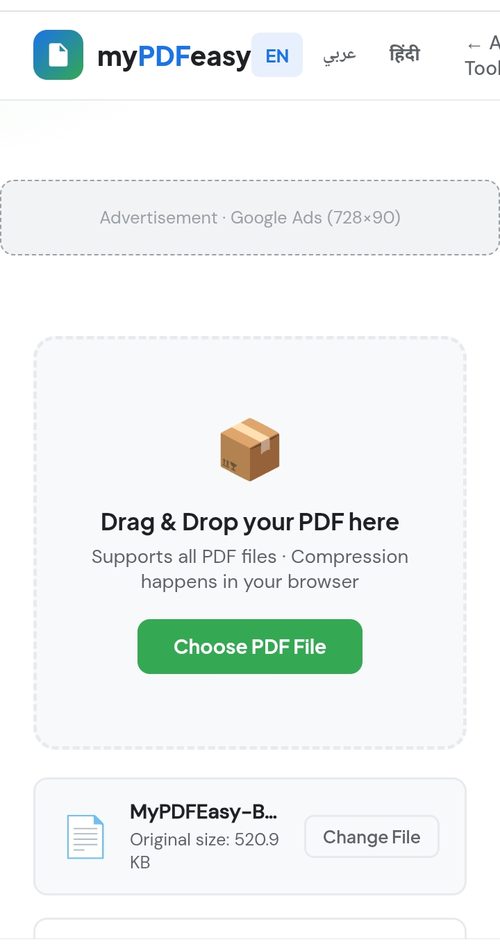
Drag and drop your PDF or click "Choose PDF File"
Choose Compression Level
Select Low (best quality), Medium (balanced), or High (maximum compression) based on your needs.
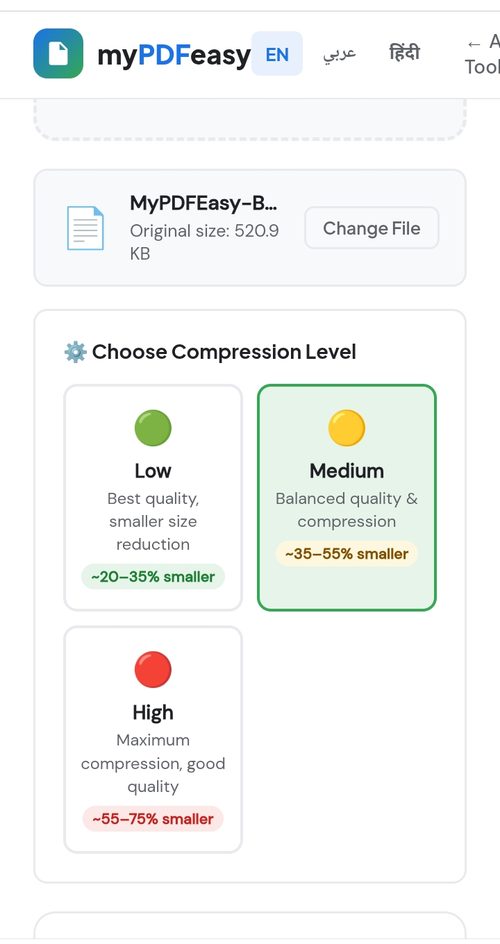
Pick Low, Medium, or High compression
Click "Compress PDF"
The tool analyzes and rebuilds your PDF with optimized structure. You'll see exactly how much size was saved.
Download Your Compressed PDF
See the before/after size comparison and download your smaller PDF file instantly.
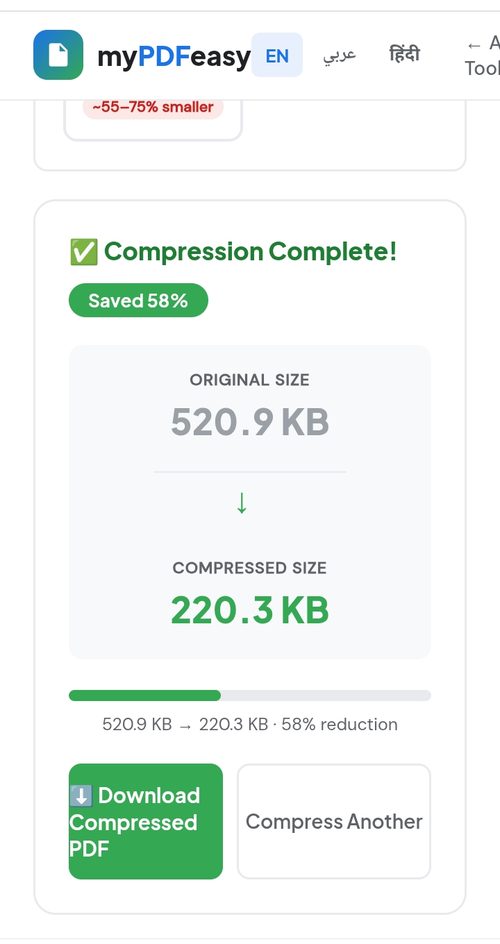
See exactly how much space you saved, then download
Which Compression Level Should I Choose?
- Low — Best for important documents where quality matters most. Reduces size by ~20–35%.
- Medium — Best for most use cases. Great quality reduction without visible difference. Reduces by ~35–55%.
- High — Best when file size is the top priority. Reduces by ~55–75%.
💡 Pro Tip: For email attachments, Medium compression is usually perfect. For uploading to government portals with strict size limits, use High compression.
📦 Compress Your PDF Now
Reduce PDF size by up to 75% — free, instant, and private
Compress PDF Free →How Much Can I Reduce My PDF Size?
The size reduction depends on the content of your PDF:
- Image-heavy PDFs (scans, brochures) — up to 70% reduction
- Mixed PDFs (text + images) — 30–50% reduction
- Text-only PDFs — 10–25% reduction
- Already compressed PDFs — minimal reduction possible
Is It Safe to Compress PDF Online?
With MyPDFEasy, compression happens entirely in your browser using the pdf-lib library. Your file is never sent to any server, making it the safest way to compress sensitive documents.
Why PDF Compression Matters
Large PDF files create real problems in everyday work. Email providers like Gmail and Outlook limit attachments to 20-25MB, so an oversized PDF simply won't send. Many job application portals and government websites reject files above a certain size. Large files also consume storage space, slow down uploads, and take longer for recipients to download. Compression solves all of these issues at once while keeping your document fully readable.
How PDF Compression Actually Works
PDF compression reduces file size through several techniques working together. Image downsampling lowers the resolution of embedded photos to a level still suitable for screen viewing. Object stream compression reorganizes the internal PDF structure more efficiently. Removing redundant metadata, duplicate fonts, and unused elements further trims the file. Our tool applies these methods intelligently based on your chosen compression level, so you get the smallest possible file that still meets your quality needs.
When to Use Each Compression Level
Low Compression
Choose this for documents where every detail matters — legal contracts with fine print, high-quality portfolios, or documents you'll print professionally. The file size reduction is modest, but quality remains virtually identical to the original.
Medium Compression
This is the recommended choice for most situations. It strikes the ideal balance between file size and quality, making it perfect for email attachments, sharing reports, and general document distribution. Most users won't notice any difference in quality.
High Compression
Select this when file size is your absolute priority — uploading to portals with strict limits, sharing over slow connections, or archiving large volumes of documents. Images become more compressed, but text stays sharp and the document remains fully functional.
Tips to Reduce PDF Size Even Further
Beyond using a compression tool, you can take additional steps to keep PDFs small. Before creating the PDF, resize large images to reasonable dimensions. Avoid embedding unnecessary high-resolution graphics. When scanning documents, use grayscale instead of color when color isn't needed, as this dramatically reduces size. If your PDF contains many pages you don't need, use a Split PDF tool first to keep only the relevant pages before compressing.
Final Thoughts
Compressing PDF files is a quick, free, and essential skill for anyone who works with documents regularly. Whether you're trying to fit a file under an email limit, speed up uploads, or save storage space, the right compression level lets you shrink files dramatically while keeping them clear and professional. Because MyPDFEasy processes everything in your browser, you get this convenience without ever risking your privacy. Try it once and you'll likely make it part of your regular document workflow.