Converting a JPG image to PDF is one of the most common tasks people need to do daily — whether it's a scanned document, a photo, a screenshot, or multiple images you want to combine. In this guide, you'll learn exactly how to do it for free, in seconds, without any software installation.
Why Convert JPG to PDF?
There are many reasons you might need to convert an image to PDF:
- Sharing documents — PDFs look the same on every device
- Email attachments — PDFs are more professional than raw images
- Combining photos — merge multiple images into one file
- Preserving quality — PDFs don't get compressed like JPGs when shared
- Printing — PDFs print perfectly without scaling issues
How to Convert JPG to PDF — Step by Step
Follow these simple steps to convert your JPG images to PDF using MyPDFEasy:
Go to the JPG to PDF Tool
Visit MyPDFEasy JPG to PDF — no registration or download required.
Upload Your Images
Click "Choose Images" or drag and drop your JPG, PNG, or WEBP files directly onto the page. You can select multiple images at once.
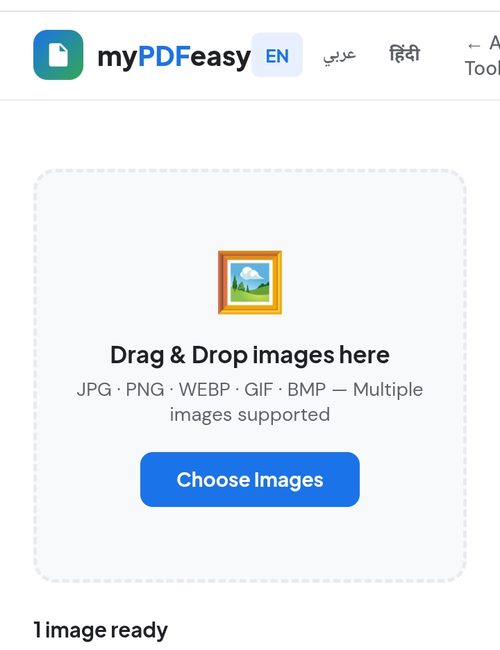
Drag and drop your images or click "Choose Images"
Choose Your PDF Settings
Select your preferred page size (A4 or Letter), orientation (Portrait or Landscape), and image quality (High, Medium, or Low).
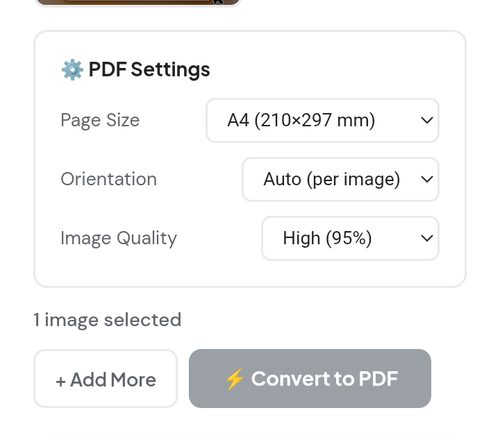
Choose page size, orientation, and image quality
Click "Convert to PDF"
The conversion happens instantly in your browser. No waiting, no uploading to a server.
Download Your PDF
Click "Download PDF" to save your converted file directly to your device. Done!
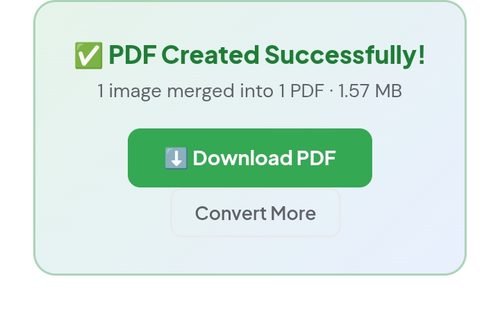
Your PDF is ready — click "Download PDF"
💡 Pro Tip: To combine multiple images into one PDF, select all your images at once before clicking Convert. They will all be merged into a single multi-page PDF in the order you selected them.
🖼️ Convert Your JPG to PDF Now
Free, instant, and 100% private — no registration needed
Convert JPG to PDF →Supported Image Formats
| Format | Extension | Supported |
|---|---|---|
| JPEG / JPG | .jpg, .jpeg | ✅ Yes |
| PNG | .png | ✅ Yes |
| WebP | .webp | ✅ Yes |
| GIF | .gif | ✅ Yes |
| BMP | .bmp | ✅ Yes |
Is It Safe to Convert JPG to PDF Online?
With MyPDFEasy, your files never leave your device. The conversion happens entirely inside your browser using the jsPDF library. This means:
- ✅ Your images are never uploaded to any server
- ✅ No one can access your files
- ✅ Works even without an internet connection (after page loads)
- ✅ No account or registration required
ℹ️ Did you know? Most online converters upload your files to their servers and store them temporarily. MyPDFEasy is different — everything happens in your browser for maximum privacy.
Tips for Best Results
- Use High quality for important documents and photos
- Use A4 size for standard documents
- Select images in the right order before uploading for multi-page PDFs
- Use PNG for screenshots with text for sharper results
Common Use Cases for JPG to PDF Conversion
Understanding when and why to convert images to PDF helps you work more efficiently. Here are the most common real-world scenarios where this conversion is essential:
1. Submitting Official Documents
Many government portals, universities, and job applications require documents in PDF format. If you have a photo of your ID, certificate, or signed form, converting it to PDF makes it acceptable for official submission and ensures it displays correctly on any device.
2. Creating Digital Portfolios
Photographers, designers, and artists often need to share their work in a single, professional file. Converting multiple JPG images into one PDF creates a clean, scrollable portfolio that recipients can easily view without downloading dozens of separate image files.
3. Archiving Receipts and Invoices
For bookkeeping and tax purposes, keeping receipts as organized PDF files is far more practical than storing loose photos. You can combine an entire month of receipts into a single PDF for easy record-keeping.
4. Sharing Scanned Notes
Students frequently photograph handwritten notes or textbook pages. Converting these images to a single PDF makes studying and sharing with classmates much simpler and more organized.
JPG vs PDF: What's the Difference?
A JPG is a raster image format designed for photographs, using compression that can reduce quality each time the file is saved. A PDF (Portable Document Format) is a document container that preserves layout, can hold multiple pages, and displays identically across all devices and operating systems. When you convert JPG to PDF, you're essentially wrapping your image in a universal document format that's easier to share, print, and archive without quality degradation from repeated saving.
How to Get the Best Quality When Converting
To ensure your converted PDF looks professional, follow these best practices. First, always start with the highest resolution image available, since the PDF cannot add detail that isn't in the original. Second, choose the "High" quality setting in the converter for important documents. Third, select the correct page size — A4 for standard documents or "Fit to image" when you want the PDF page to match your image dimensions exactly. Finally, for documents containing text, such as scanned pages, PNG format often produces sharper results than JPG.